
A fast, focused
image viewer for Windows.
Set IMG Vitrine as your default photo app, and images open the moment you double-click them. View, cull, compare, and edit your photos in one app.
Features
Opens fast, flips fast
- The app waits in the background with a window ready, so images open right away
- Press ← or → to move between the images in a folder
- Zoom around the pointer, and drag to any spot
You can choose a different background mode in Settings.
Choose how photos are displayed
- Fit in window (recommended, default)
- Fit window to photo
- Always actual size
Switch at any time from the button at the top of the viewer panel. Dragging and zooming work the same with every option.
Cull in a flash
- Press ↑ to add an image to the Pick-up List and go to the next one, or ↓ to add it to the Drop List
- Prefer your left hand? S (↑), X (↓), A (←), and D (→) do the same
- Press 1–9 to move the image to a destination folder you’ve set up (Shift+number to copy)
Adding an image to a list doesn’t touch your files. They move only when you open a list and select “Move to folder…” or “Copy to folder…”.
Color correction that stays on screen
- Switch the look of your photos with a preset
- Adjust exposure, contrast, saturation, temperature, and more
- Turn it off for a moment to compare with the original
Color correction changes only how photos look on screen. It’s never saved into your images or copies.
Compare two images
- Three views: side by side, A-B (flip between them), and wipe (drag the divider)
- Side by side, zooming and dragging stay in sync
- Afterward, choose what happens to the one you didn’t keep: leave it, move it to the Recycle Bin, or move it to a destination folder
Slideshow
- Transitions such as fade, push, and cover (or none)
- The Ken Burns effect gives still photos a slow, gentle motion
- Set how long each photo is shown, the order (including random), and how videos are handled
Edit
- Crop, rotate, flip, and resize
- Black out, pixelate, and blur
- Filters such as sharpen, grayscale, sepia, and line art
- Select an area with a rectangle, ellipse, polygon, or lasso
- Eraser fills an area with the colors around it
AI features Runs on your PC
- Separate subject and background (AI): blur, make transparent, or fill the background
- Generative erase: select what you want gone, and AI fills in the area to match its surroundings
All AI runs on your PC, and your images aren’t sent anywhere. The first time you use the high-quality cutout model or generative erase, the app asks before it downloads an AI model file. AI results may be inaccurate.
Many formats, in Japanese and English
- Images: JPEG, PNG, GIF, WebP, AVIF, BMP, ICO, SVG, TIFF, HEIC, PSD, TGA, JPEG XL, and camera RAW
- Videos: MP4, M4V, WebM, and MOV
- The interface follows your Windows language, Japanese or English. You can change it in Settings
Opening HEIC or JPEG XL images may require an extension from Microsoft Store.
Screenshots
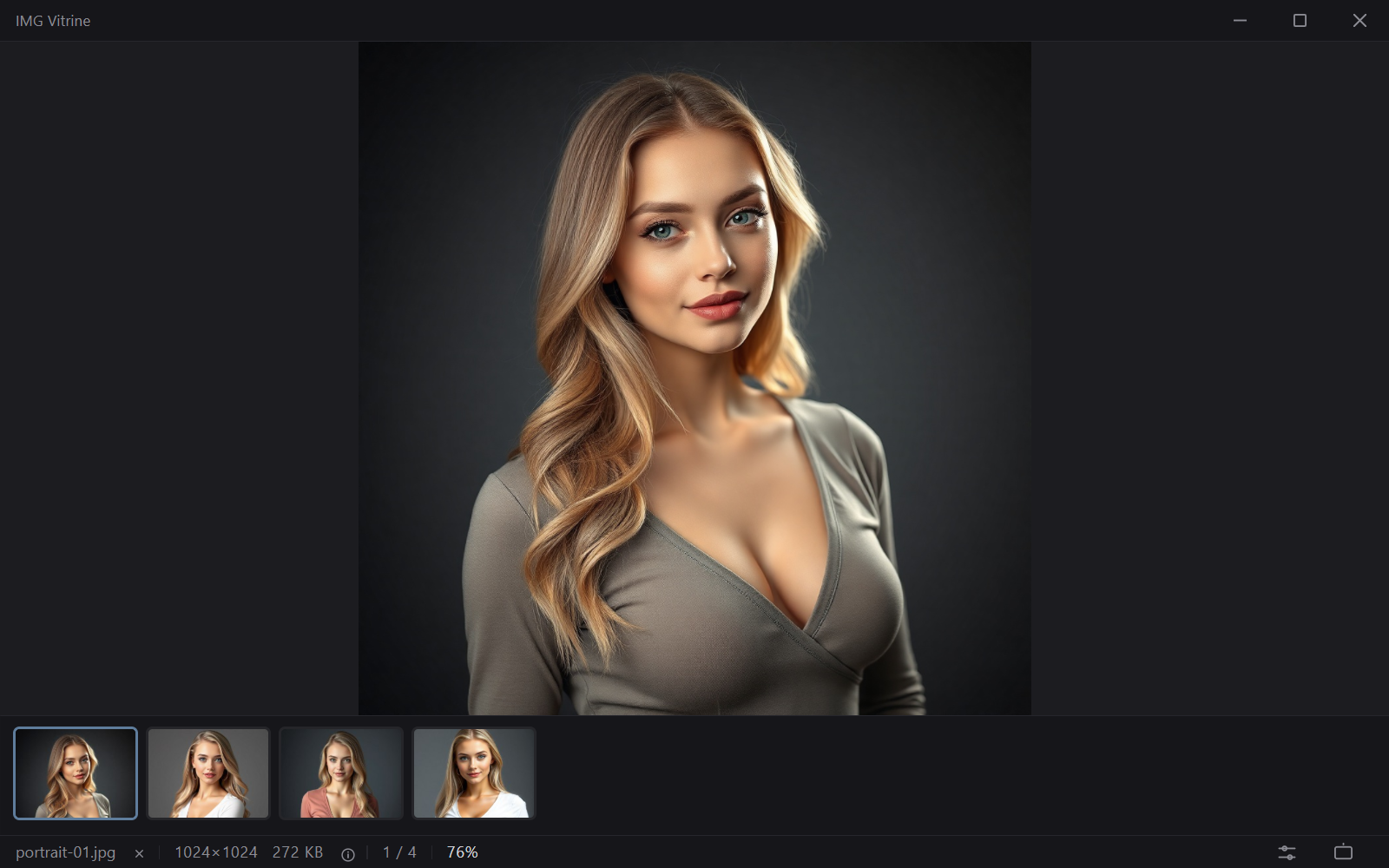
Viewer
Shows each photo fit in the window. The photo is the star, and the tools appear only when you need them.
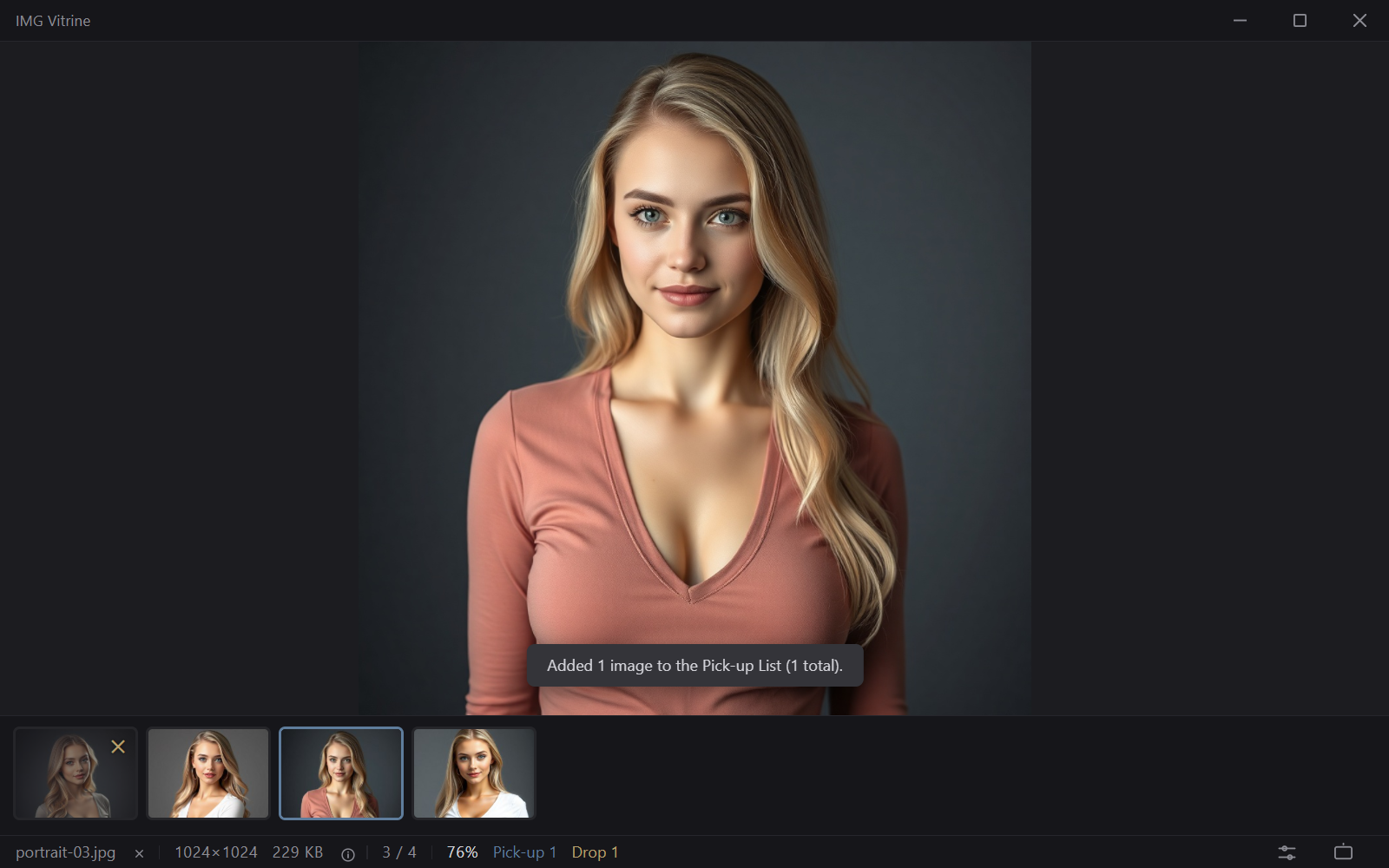
Culling
Sort images into the Pick-up List and Drop List with the arrow keys. Open a list to move or copy everything at once.
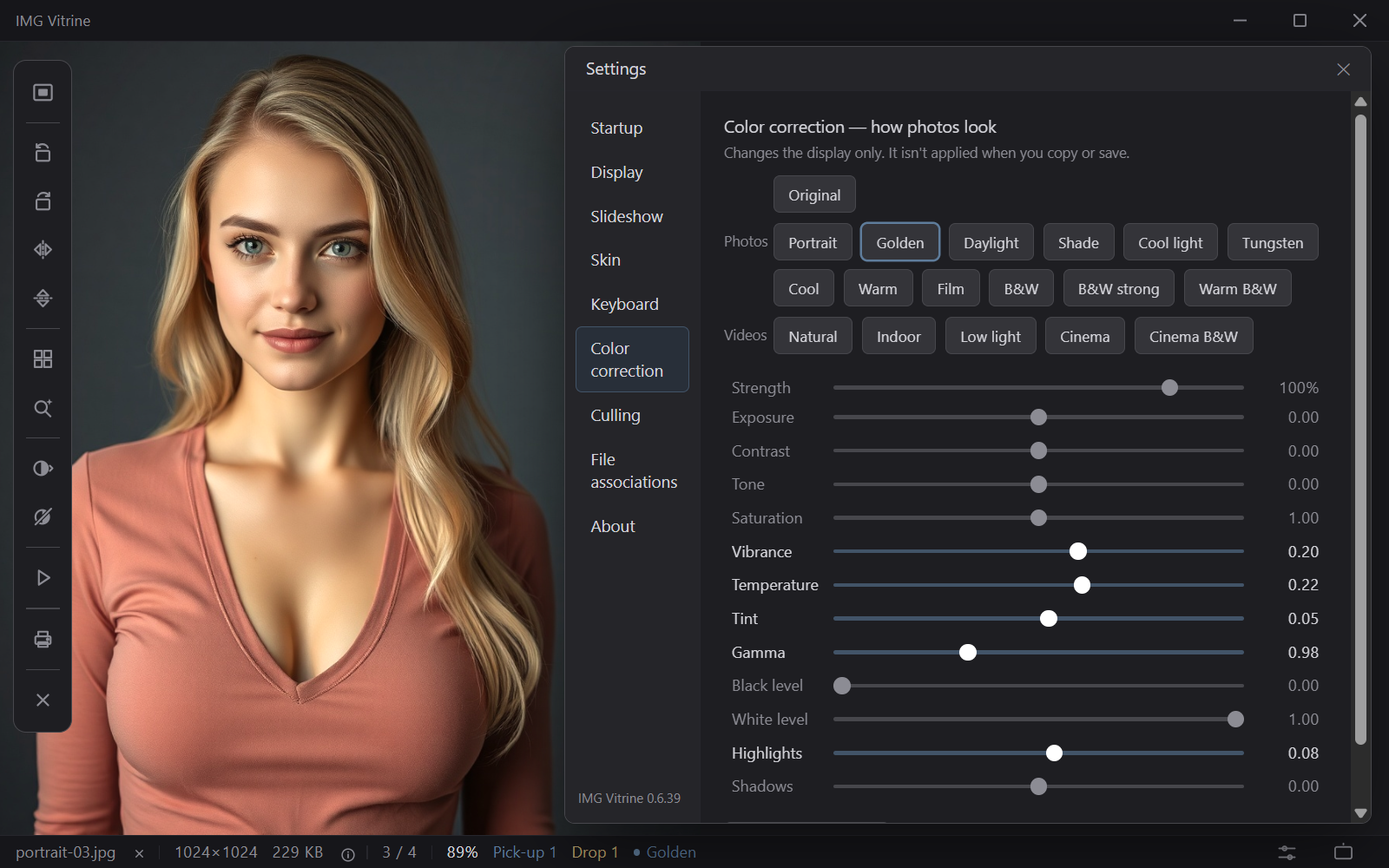
Color correction
Switch how photos look with a preset. It’s never saved into your images.
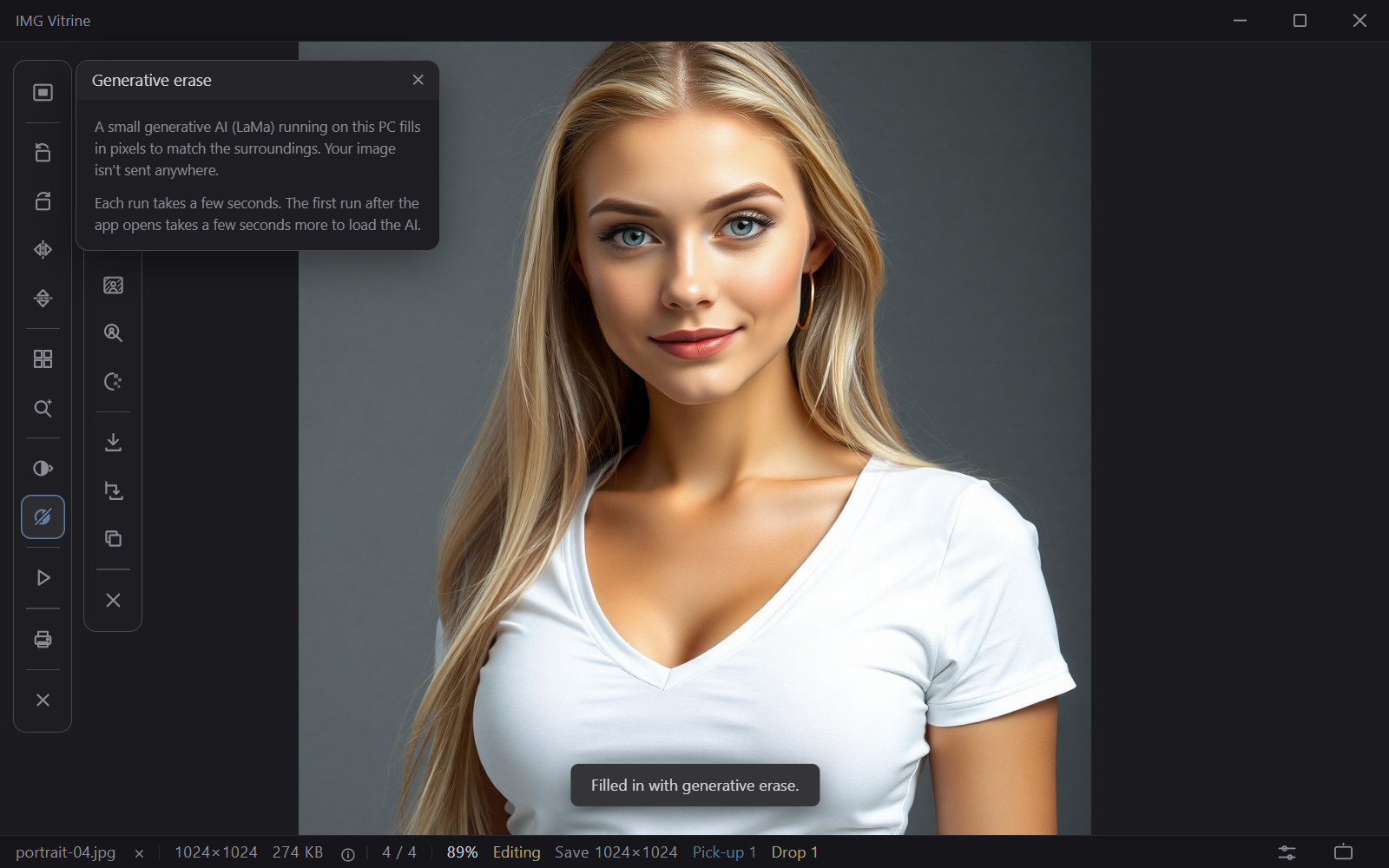
Editing and Generative erase
Select what you want gone, and AI fills in the area to match its surroundings.
Get the app
IMG Vitrine is free. Get it from Microsoft Store.
Free, and ready to use
- Free to use
- No account and no ads
- Updates automatically through Microsoft Store
- Works without an internet connectionYou need a connection only to show place names (off by default) and to download AI models.

Questions, bugs, or feedback
If something doesn’t work, or you have feedback, let us know. You can also report a problem with a Generative erase result here.
Report a problem or contact usYour photos stay on your PC
- We don’t collect your informationThere are no accounts, no ads, and no usage tracking.
- Everything is processed on your PCViewing, editing, and AI processing all happen on your PC. Your photos are never sent anywhere.
- Only two kinds of connectionsWhen you turn on place names (off by default), and when you agree to download an AI model. Neither sends your photos.
Accounts
You don’t need an account to use the app.
About generative AI
Generative erase uses generative AI to fill in an area to match its surroundings. The result may look unnatural or may be inappropriate.
If you notice a problem, you can report it to the developer on the Report a problem or contact us page.
A fast, focused image viewer for Windows.
For questions or problems, contact us.
